
 Français
 Nederlands
 English
The file manager
Send, edit and organise your site's files directly from your browser, with no FTP software.
httpdocs (and your CGI scripts in cgi-bin).From this screen, you can in particular:
- Upload a file: click Add New File, browse your computer and confirm.
- Upload a ZIP archive: once uploaded, check it and click Extract Files.
- Create a folder or file, with the option to insert a basic HTML template.
- Edit the source code of a file directly in the interface.
- Copy, move or rename a file or folder via the dedicated icons.
- Delete a file or folder after confirmation.
Understanding and changing permissions
When you upload content via FTP or the file manager, the Panel automatically assigns access permissions to each file and folder. On Linux hosting, these permissions are shown as three groups of symbols, for example rwx rwx r--:
1st group
What the owner of the file or folder can do.
2nd group
What the associated user group can do.
3rd group
What other users can do (the rest of the internet).
R (read), W (write) and X (execute the file or browse the folder) are the three possible permissions for each group.
To change a file or folder's permissions: in the File Manager, click the ⋮ menu to the right of the relevant row, then choose Change Permissions.
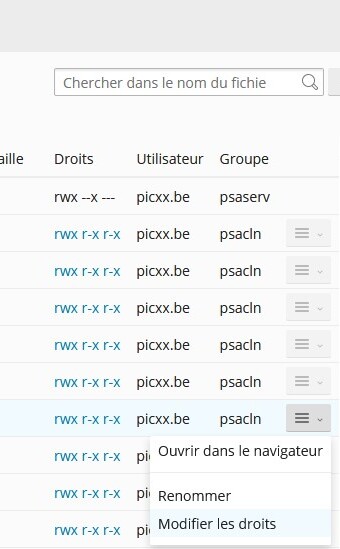
Check or uncheck the desired permissions for each group (read, write, execute), then confirm. For example, to remove all write permission on a file or folder:
To harden a CMS's security after installation, see our page on securing your CMS, which explains how to remove unnecessary write permissions.
Do remember to keep write permission for the owner on folders that need to stay editable — for example the one that holds your images (often uploads) — so you can keep adding content to it: