

 Français
 Nederlands
 English
Gigaweb Guide
Install an SSL certificate
The SSL certificate secures traffic between your site and your visitors (the well-known padlock in the browser). Gigaweb lets you activate it for free in a few clicks.
This is done from your hosting's Control Panel. Not sure how to access it ? Follow the guide to access the Control Panel →
1
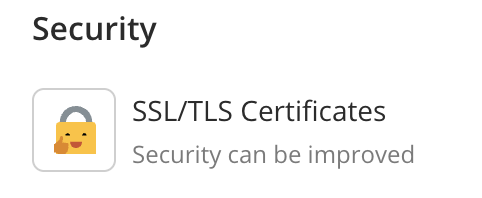
In the Control Panel, find the Security section and click SSL/TLS Certificates.
2
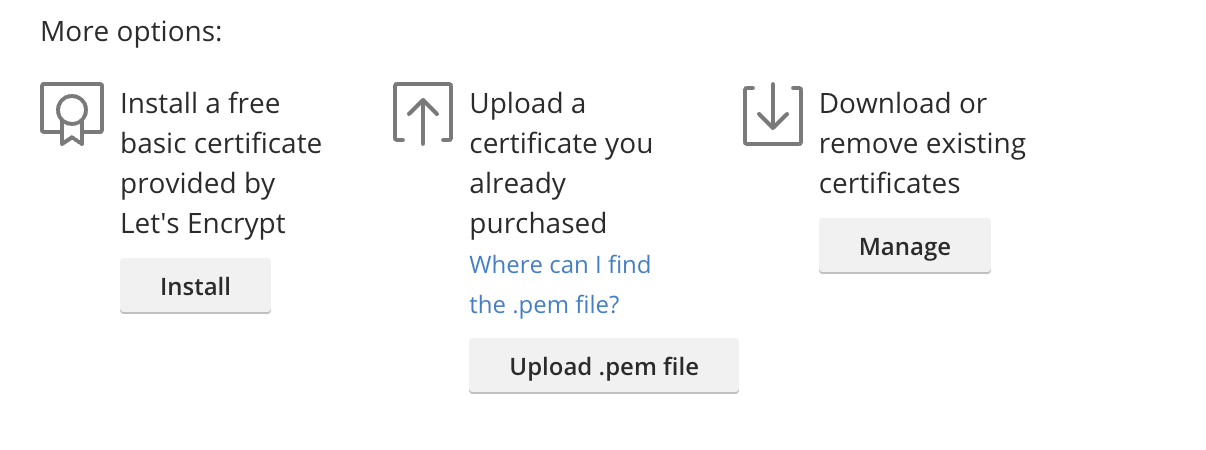
Click Install, under “Install a free basic certificate provided by Let's Encrypt”, to start the process.
3
Enter the email address where you want to receive notifications about the certificate. Two options are offered: Wildcard (full protection of the domain, including its subdomains) and Assign the certificate to the mail domain (also protects your mailbox).
4
Click Get it for free again.
5
A domain identity verification window appears. Wait about 20 seconds before clicking Reload.
6
If verification fails, a TXT DNS record must be added manually to your DNS zone: the name starts with
_acme-challenge, and the value to copy is shown just below, in the blue box.Once verification succeeds, the next screen confirms your domain is secured.
Automatically redirect to HTTPS
In the Options window, you can enable automatic redirection of all HTTP traffic to HTTPS — recommended so your visitors always land on the secure version of your site.