

 Français
 Nederlands
 English
Gigaweb Guide
Access your client area
Every management action for your hosting (domain, email, FTP, databases…) goes through the Control Panel. Here's how to access it.
The Control Panel brings together all your hosting settings: email, DNS, FTP, databases, SSL certificates, file manager, and more. It's accessible in a few clicks from your client area.
1
Go to gigaweb.be and click Client access.
2
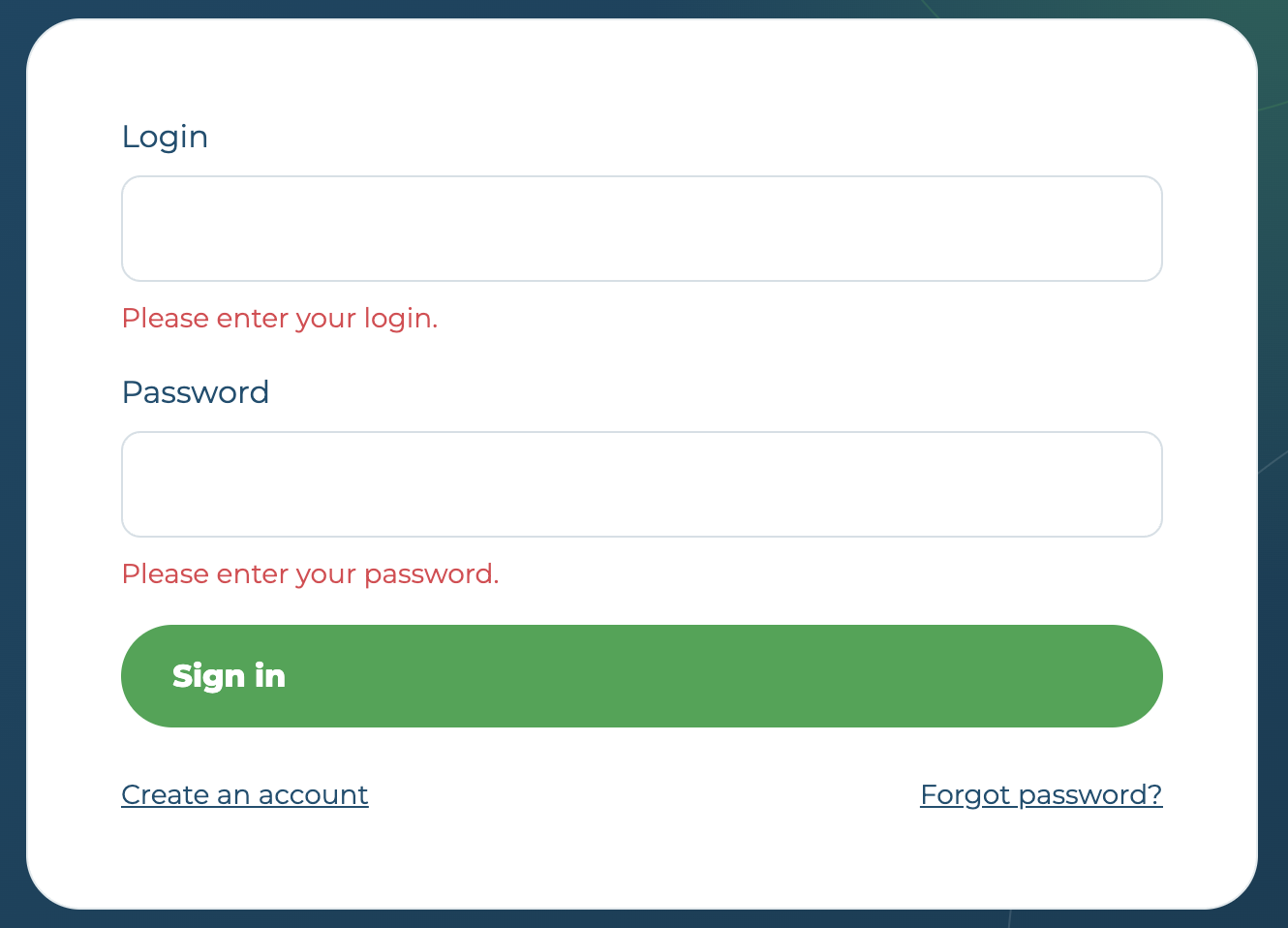
Log in with your login and password.
3
Click Domains in the left-hand menu.
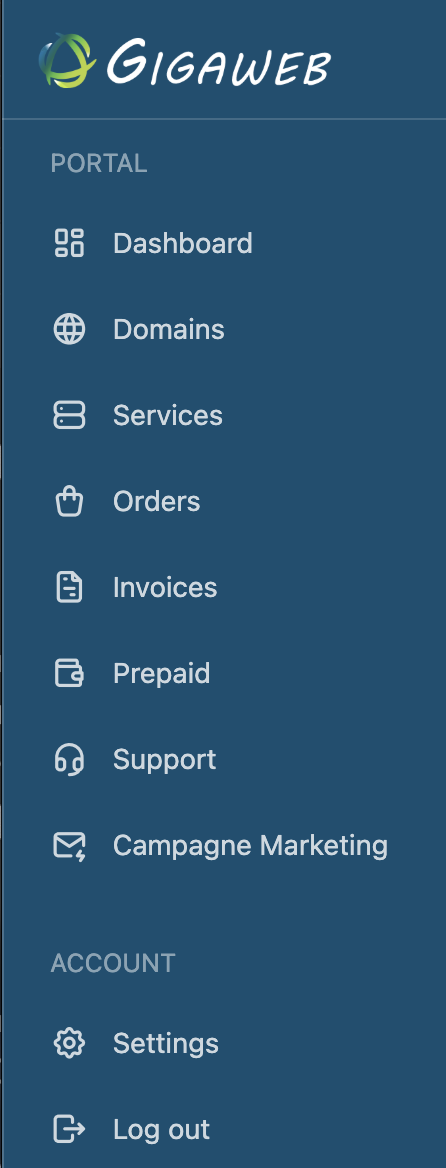

Then find the relevant domain in the list — useful if you manage several — and click Manage next to it.
4
On the domain page, click Control Panel.

You then reach the full management of your domain name's settings: this is the starting point for every other operation described in this guide.
Forgotten your password?
If you can no longer log in to your client area, see the password recovery procedure.