

 Français
 Nederlands
 English
Transfer your website for free
Our control panel includes an import tool that copies your existing website — files, databases and application — from your current host to your Gigaweb hosting. At no extra cost, and without rebuilding anything.
All the content, not just the files
The application (WordPress, Joomla, Drupal, PrestaShop), its files and its database are taken over together. You can also import only certain folders or a single MySQL database.
From any hosting provider
The source can be a Linux or Windows server, even one without Plesk installed. FTP or SSH access to the website files is enough.
No downtime for your visitors
The original site stays online throughout the copy. The domain name is only switched over once we have checked the result on our side.
The transfer, step by step
- The source website domain name, the one the content must be copied from
- An FTP or SSH username and password with access to all the files of the source website
- The Site Import extension enabled in your control panel — if it is not there, ask us to add it
Our advice: go for SSH whenever you can. Importing is markedly faster than over FTP. Also back up the destination domain before you start: if an application is already installed there, its files may be overwritten.
Open the Site Import extension in your panel: it lists the domains in your subscription. Select the one that will receive the content — your destination domain. You can also start from Websites & Domains, select the target domain, then click Website Importing.
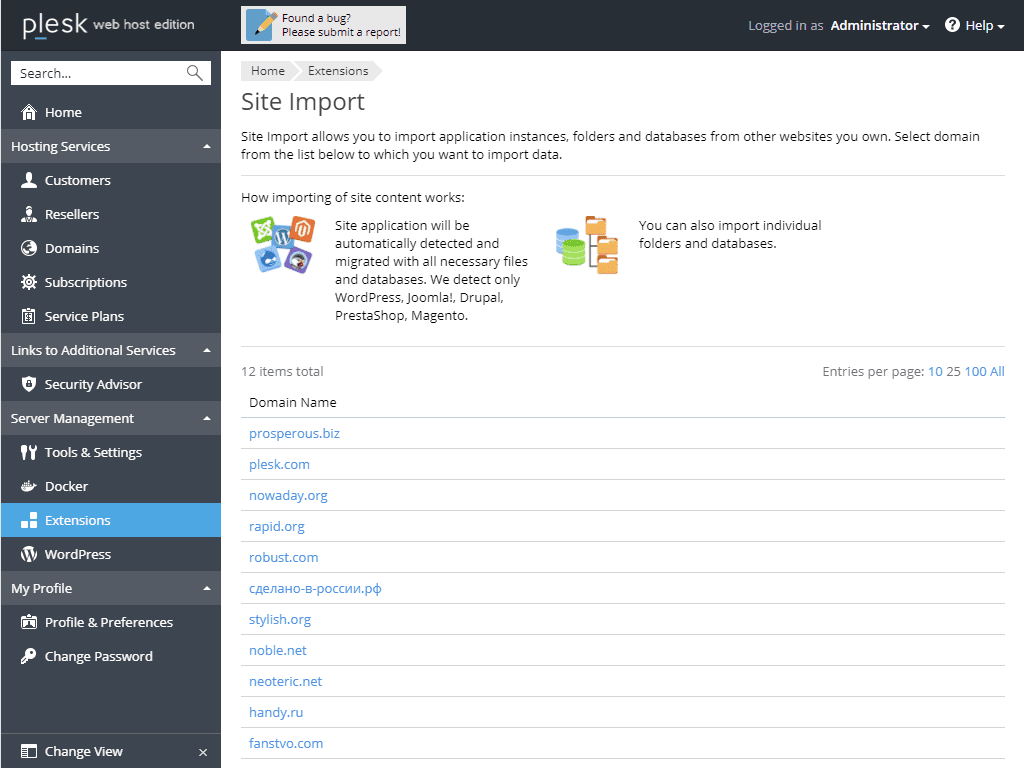
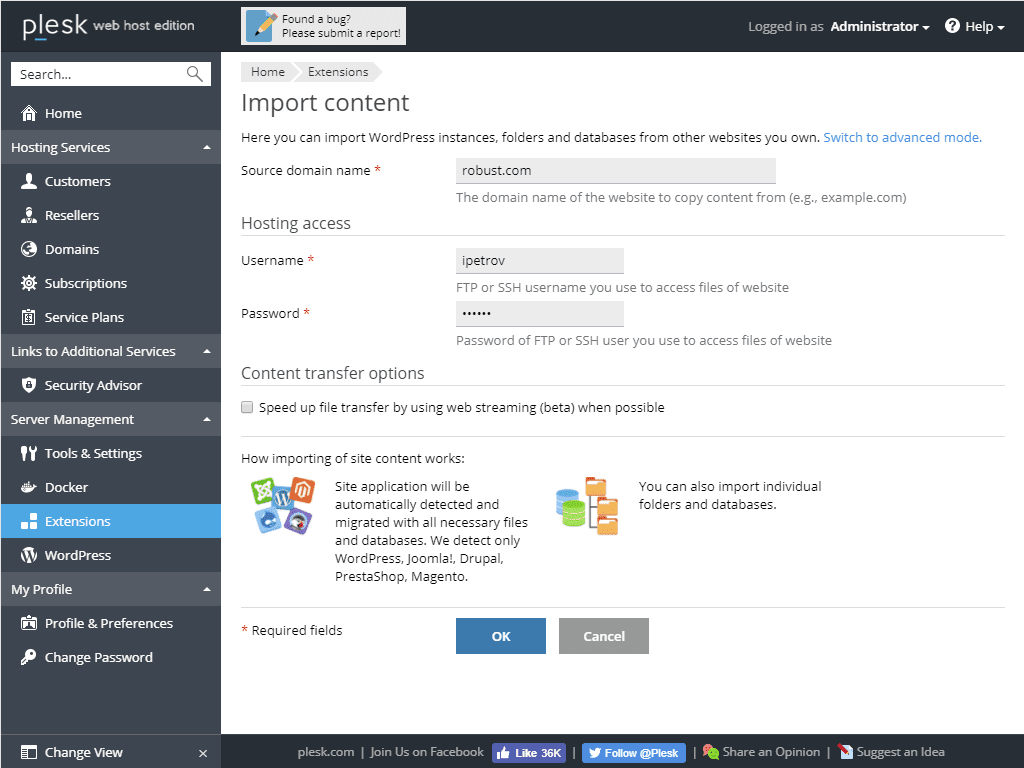
By default the import runs in simplified mode: you provide the source domain and credentials, and the panel detects and applies the optimal settings itself.
- Enter the domain name of the website to copy in the Source domain name field.
- Provide the username and password of the FTP or SSH user on the original server.
- If you are transferring a large number of small files, or if the connection may be interrupted, tick “Speed up file transfer by using web streaming (beta) when possible”: an interrupted import can then be resumed instead of started over. This option is still in beta, so only enable it if you accept the occasional hiccup.
- Confirm with OK.
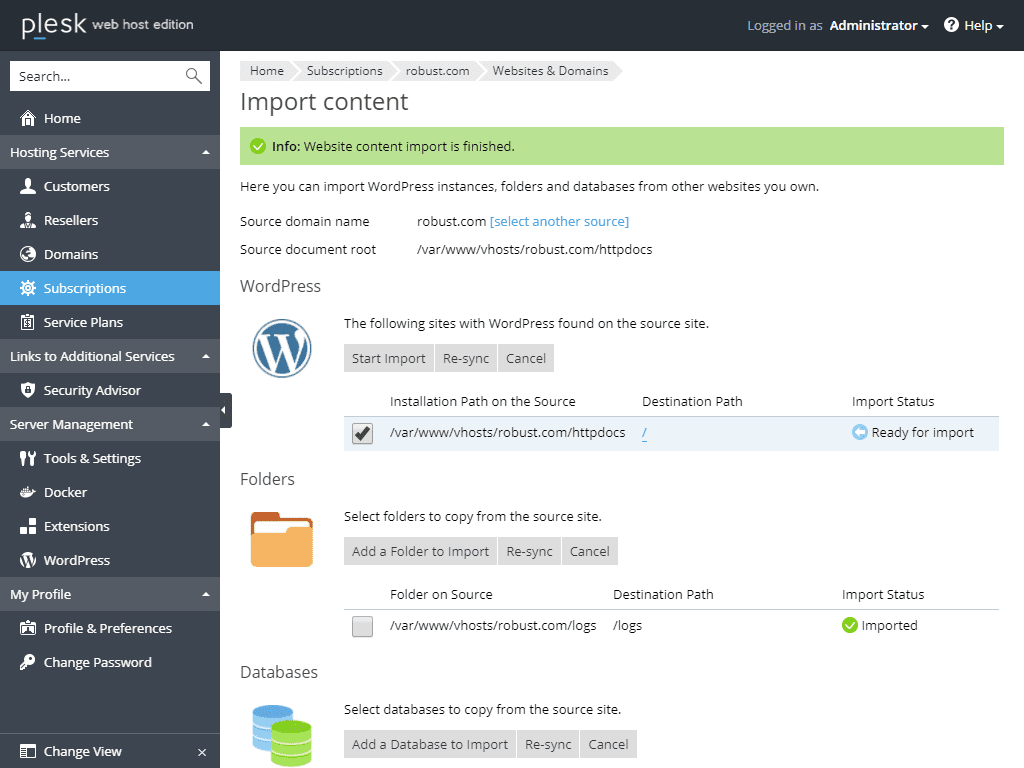
The panel then connects to the source website and scans its content. If the connection succeeds, you pick what should be taken over:
- The applications found on the original website
- The folders to copy
- The databases to take over
Each item moves from “Ready for import” to “Queued”, then “In progress” and finally “Imported”. Once the import is finished you can run it again at any time with the Re-sync button — bearing in mind that this overwrites any changes made on the destination in the meantime.
Check these three points, then try again:
- The source website domain name resolves to the correct IP address of the original server
- The FTP or SSH username and password are correct, and that user has access to all the files and directories of the website
- The source server is reachable over FTP from the destination server
If the connection succeeds but the content scan fails, advanced mode lets you define everything explicitly. Click “Switch to advanced mode”, then:
- Choose the connection type — SSH or FTP — and fill in the matching credentials
- Specify a custom SSH port if the source server does not use port 22
- Select the way to transfer files: on “Automatic” (recommended) the panel first tries rsync, the fastest method, and falls back to SCP if it fails
- Indicate the source document root and the file root, for example
/var/www/vhosts/example.com/httpdocs— or/httpdocsif the SSH user is chrooted - Give the full source website URL matching that root, for example
https://example.com
These settings are technical: when in doubt, leave it to us — it is part of the support we provide.
A full-export module, just ask
If your current website runs on WordPress, you can call on us: we provide you with a module to install on your existing WordPress that performs a complete export of the site — files, theme, plugins, content and database — as a single package ready to be put back online on your Gigaweb hosting.
It is the simplest route when you have no FTP or SSH access to the original server, or when the automatic import runs into an unusual configuration.
Request the WordPress module- Module installed on your current website
- Full website exported as a single package
- Put back online on your Gigaweb hosting
- Checked before the domain name is switched over
We transfer your website for you
Tell us where your website lives today: we prepare the hosting, move the files and the database, then switch the domain name over once everything has been checked on our side.